The drawing board that already knows your trade.
DrawPyCS is field-sketch CAD scoped to one job - turning what's underground into a clean, code-accurate print. Pick a utility, draw the line, and it comes out the right color, weight and style every time. Run it on its own, or dock it inside a ticket so the sketch saves with the job.
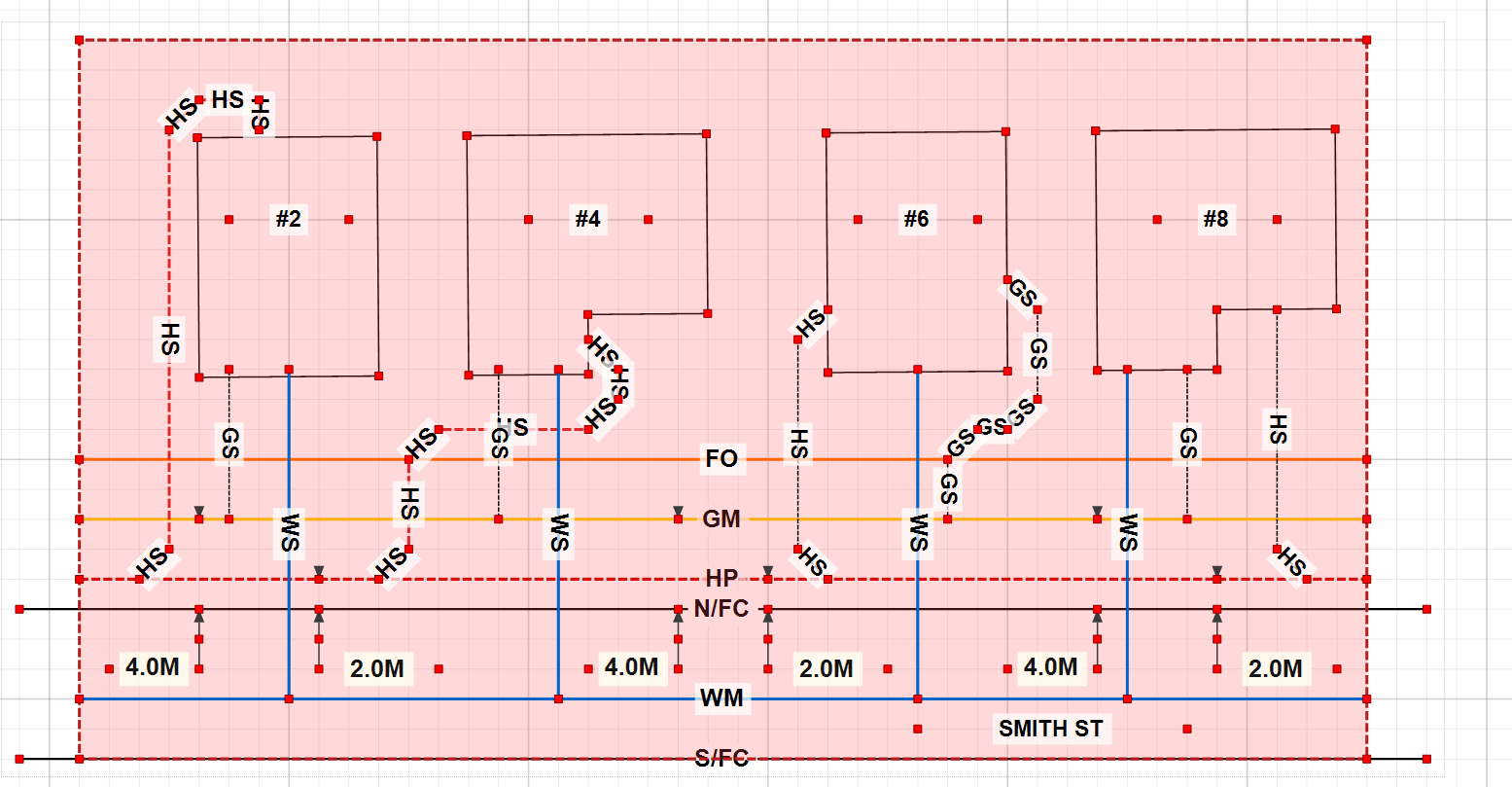
Three moves from blank page to print-ready.
Pick a tool
Choose a utility line, a symbol or an annotation from the Quick Access panel. Every tool carries its own color, weight and style - no properties to set first.
Draw it
Click to place points, snap to the grid, reshape vertex by vertex, drop leader labels and dimensions. Undo anything, rubber-band select the rest.
Hand it off
Print, print-preview, or export a crisp PNG for the ticket. The drawing itself saves to a compact, portable XML file.
Every buried utility, already the right color.
Pick a tool and draw - the line comes out in the uniform color your crews already mark by, so the print reads correctly to anyone in the trade without a single manual color pick.
Water
Gas & pressure mains
Electrical & power
Telecom, TV & fibre
Sewer
Site & surface
Plus free-form primitives - polyline, double polyline, spline, Bézier curve, ellipse and rectangle - for anything the standard tools don't cover.
Drop the fixtures you mark every day.
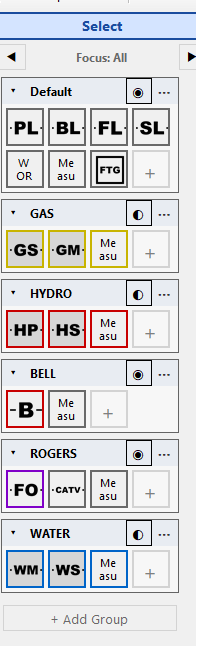
30+ field symbols, sized on screen and printed to a consistent scale. Place, drag to size, rotate - each keyed to its utility color so a valve reads as gas and a hydrant reads as water.
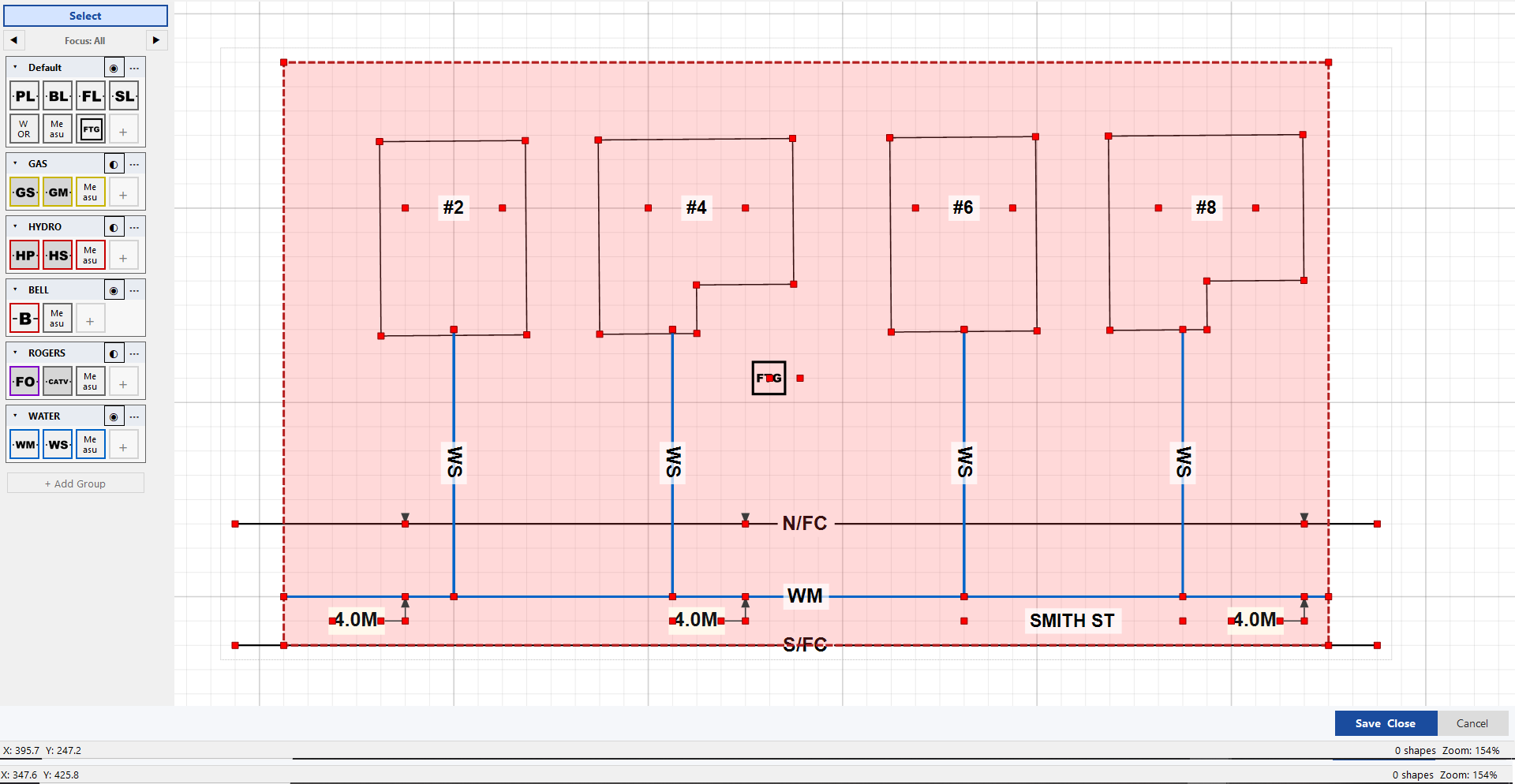
Hand hydro a clean print without deleting the gas.
Every shape carries its kind. Toggle a kind and every line of that type hides at once - so one drawing serves every utility, and the gas stays separable from the hydro the way the contract demands. There are two kinds of "hidden", and the difference matters.
Blocklist a whole kind
Click a Quick Access tab's eye and that kind is hidden for the whole drawing - on screen and in the exported PNG or print. It's saved with the file, so the gas-vs-hydro split travels with the deliverable.
- ✓Saved to the drawing XML
- ✓Honored by the printed & exported deliverable
- ✓One drawing, many single-utility prints
Show one layer at a time
Step through layers one at a time to check your work - a screen-only "solo" that never persists. Save the file or export a ticket image while focused and it still contains every layer, so you can't accidentally ship a one-utility sketch.
- ✓Screen & hit-test only
- ✓Never written to a saved file
- ✓Export always includes all layers
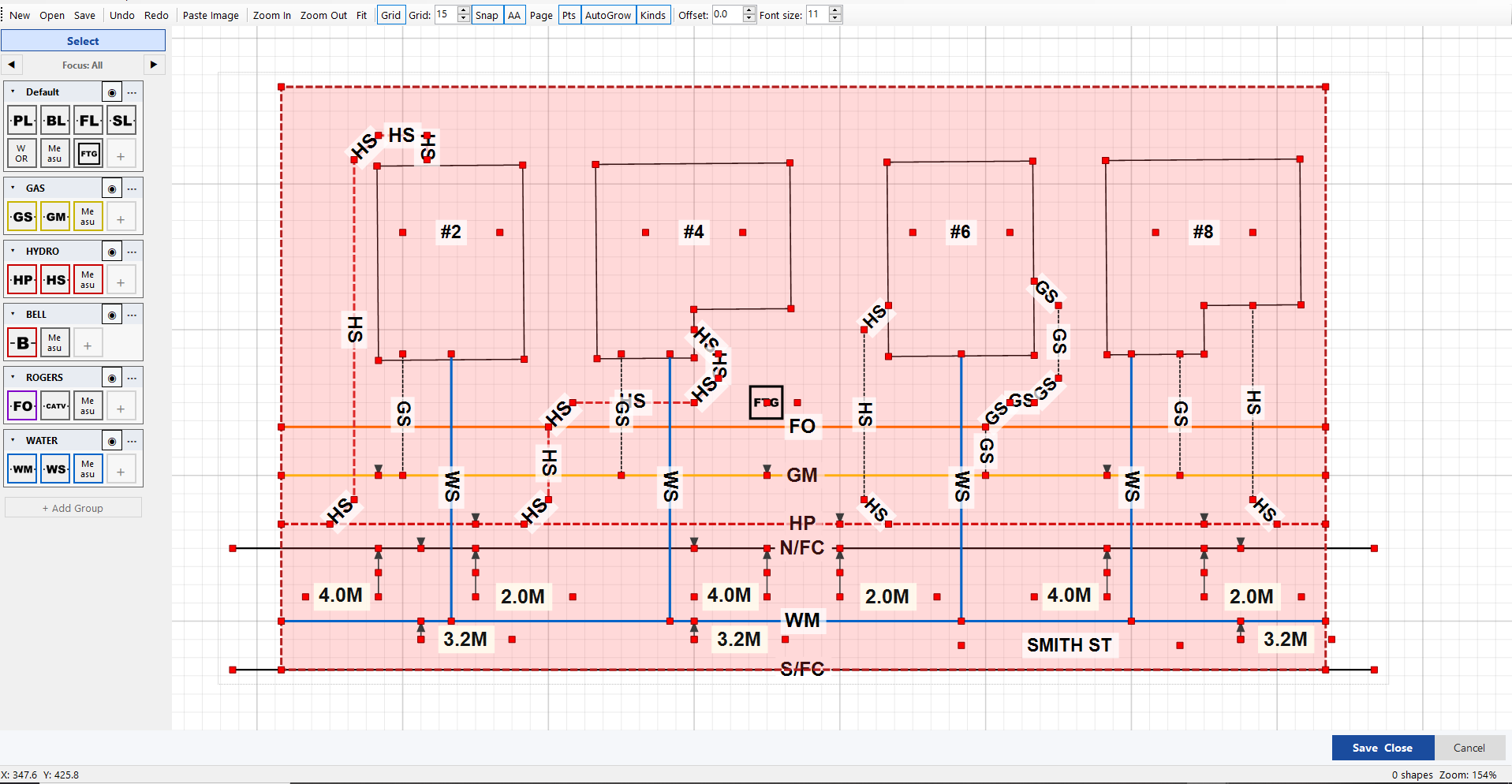
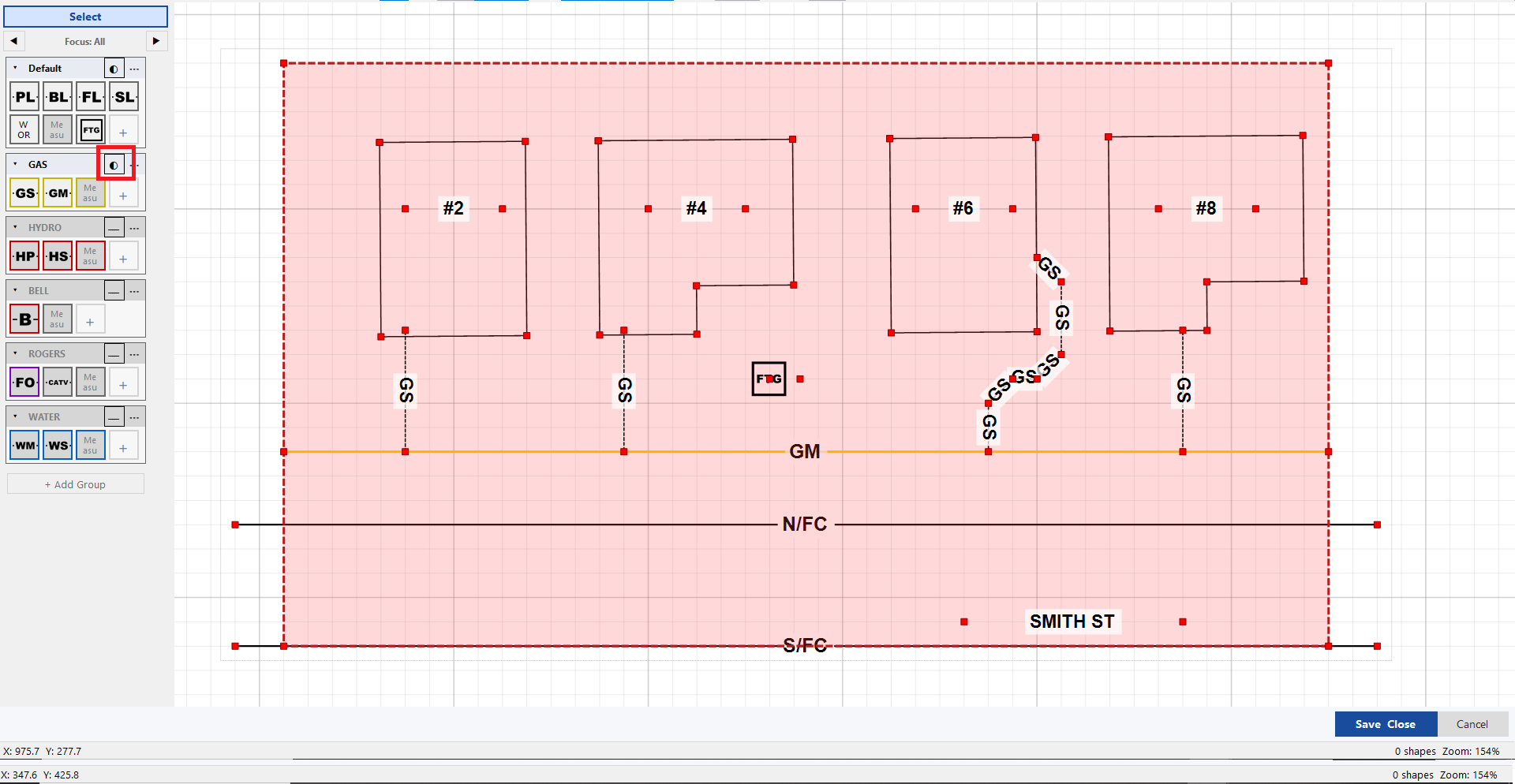
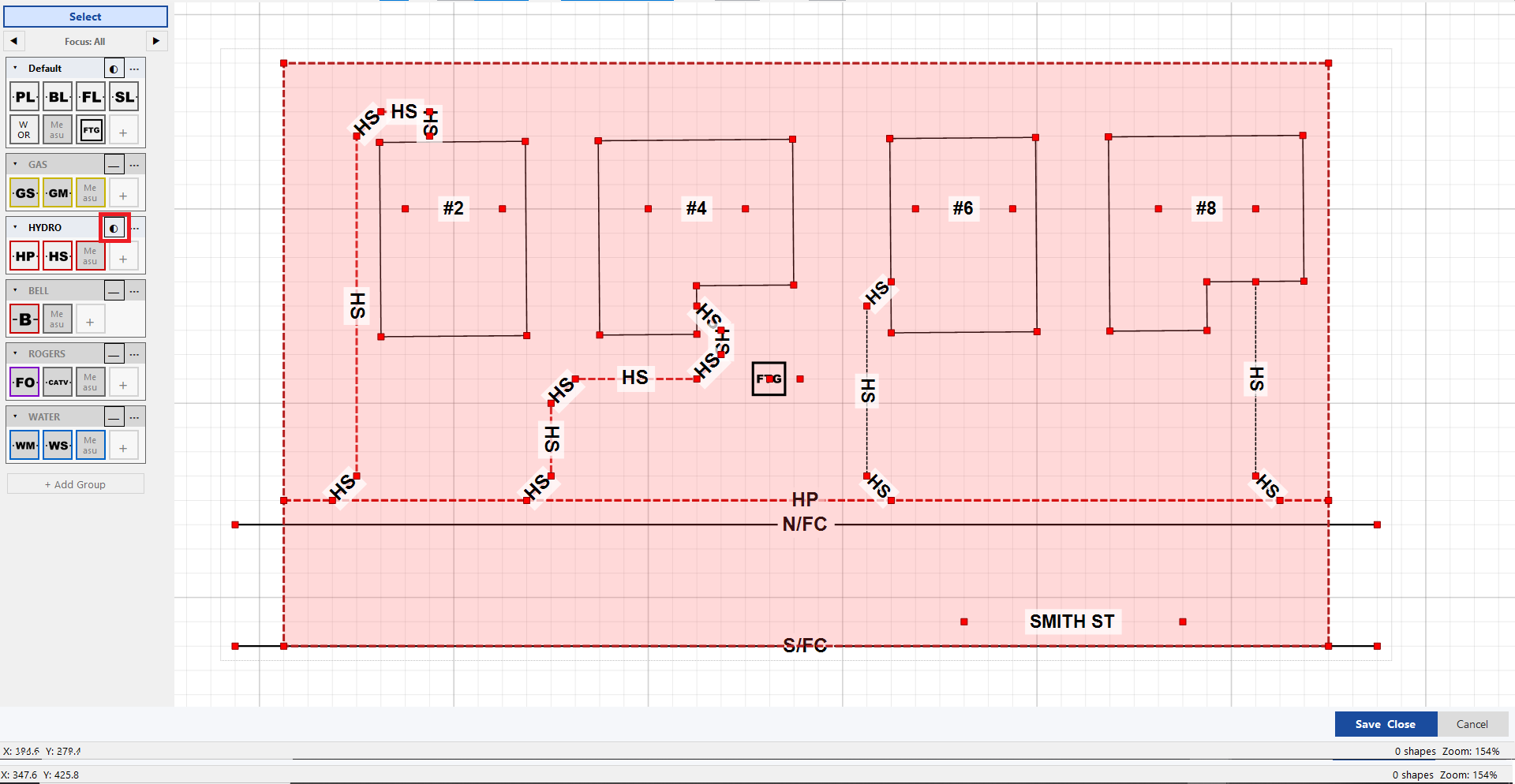
Tabs that are tools and layers at once.
Group your go-to tools into tabs. Each tab owns the kinds inside it, so the same header that switches tools also toggles that layer. Style a tool once and every line you draw from it matches.
Per-tool overrides
Each preset can override line color, width and style - for both lines of a double line - plus fill, font size and text color. Leave any unset to use the shape's default.
Drag to organize
Reorder tools within a tab or drag them between tabs. Stable IDs mean several variants of the same line - three Power presets, say - coexist and move independently.
Solo & overrides survive
A focus bar walks you through one layer at a time; per-tab font-size and text-color overrides keep labels consistent. Your groups persist between sessions.
Everything a locate sketch needs, nothing it doesn't.
Shapes
- Polyline
- Double polyline
- Spline
- Bézier curve
- Ellipse
- Rectangle
- Image import
Annotations
- Text label
- Text with arrow
- North arrow
- Dimension
- Measure line
- Work area
- Segment labels
Editing
- Undo / redo
- Copy / paste
- Duplicate
- Reshape vertices
- Rotate
- Rubber-band select
- Move up / down (z)
View
- Grid + snap
- Zoom / fit
- Page boundary
- Auto-grow page
- Control points
- Antialiasing
- Properties panel
Prints clean, saves small, drops into your ticket.
Print & PNG
Print-preview and print to any page, or export a crisp PNG. Exports always contain every layer, even if you were soloing one on screen.
Portable XML files
Drawings save to a compact, human-readable XML format - schema-compatible with the original draw_py tool and written culture-safe, so files open the same on any machine.
Docks into the ticket
The same drawing engine embeds inside Field Ticket Manager as a dialog, hands the finished sketch back as an image, and pairs drawings to aux pages by position.
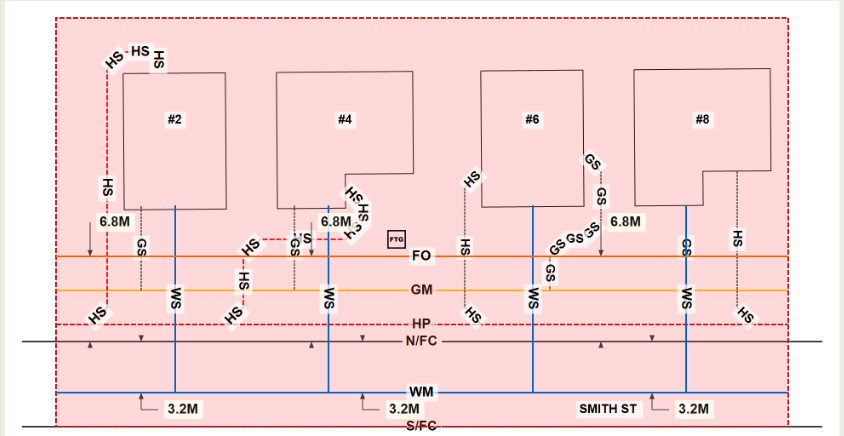
See DrawPyCS on a real sketch.
Book a walkthrough and we'll draw one of your jobs live - utility lines, symbols, layers and a print-ready page - then show it docked inside a ticket.